1)This part of the tutorial includes adding GUI mod patches and other patches to your corby..
you will need This pack
2)Download 'Apps.bin' get it here
2) A Swf Player to View the Gadget and Menu swf files (to select the ones you like from the folders: "Home screens" and "Menus" ) : get one here
Steps:
1)Before Any patching Turn on the phone.. go to my files and create a new folder in phone memory! (NOT IN MEMORY CARD!) named 'res' ..'res' Folder must be in
"myfiles/res" (do not create it inside videos, music , photos etc... or it wont work!!!!!!!)
2)copy "font" folder which is located at 'change font' folder to the 'res' folder
3) Go to folder 'Recommended' located in GUI folder and copy the three .swf files to the 'res' folder.
Note: I created recommended folder as a help for you guys.. after being used to this stuff you can try out all the content in the 'home screens' 'menus' and 'myfiles' folders... just extract them and copy them to the 'res' folder.. Remember you only can have 1 gadget.swf and 1 Menu.swf file and 1 myfiles.swf at the 'res' folder.. ALSO REMEMBER HAVING OTHER NAMES such as blablablabla.swf in the files you put in 'res' folder will not be displayed.. so make sure the .swf files have the correct names first!
6)Now Turn off the phone..
7)You're now going to apply your phone the with the all in one patch of the following features
1) Quick On/Off
2) Screen Brightness Stays Unchanged when java apps are opened
3) Java Apps are saved on Memory Card
4) phones gives a vibration when someone answers your call .. so you dont have to stare at the phone screen after dialing
5) Startup Animation is disabled (speeds up the startup!)
6) you can now use java applications and media player when in low battery mode
7) Change SWF Patch (applies to changing menu,desktop,myfiles)
8) Change Font patch
and 2 more essential patches
8) I)Open the Multi Loader 5.56
II)For Rsrc2 select the "AIO.rc2" which is located in "Patch and mod/patch/" ..and for AMSS select Apps.bin. IGNORE all the others such as " RSRC1 , FACTORY FS etc.. " NOTE THAT YOU DONT NEED TO FLASH FIRMWARE TO YOUR CORBY EVERYTIME YOU NEED TO APPLY PATCHES..AS LONG AS YOU DONT SCREW UP YOUR PHONE WITH CORRUPTED PATCHES.. YOU CAN APPLY PATCHES USING THIS METHOD
III)Click Port Search and when found put a tick
IV) Then Click download and wait till it finishes.. your phone will restart after the patch is applied..then unplug it
DONE PATCHING! :D
9)Now turn on the phone and in the boot up of phone you should see something like this:
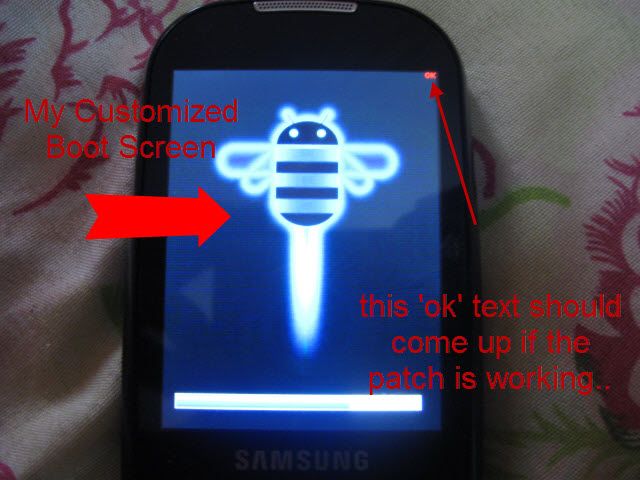
However you will see your default Boot screen Instead of this android logo.. BUT THE 'ok' text MUST APPEAR ON THE SAME PLACE OF ON YOUR BOOTUP SCREEN
Entering Patch Menu:
press and hold "lock" button above the camera button just after you turn on the phone (the stage that blue bar fills up) .. if you do it right the patch menu should appear and you'll be able to enable or disable patches from that menu..
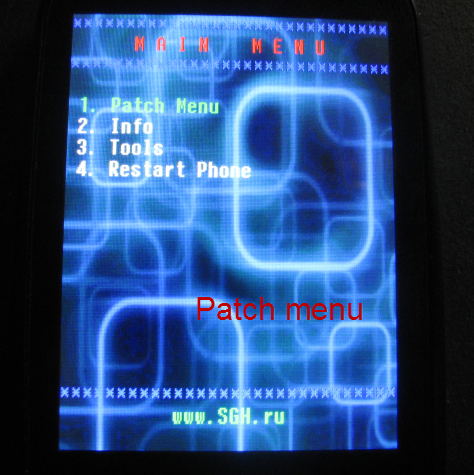
Keys in the patch mode:
camera button: toggle select
lock button: save changes
volume up down:navigate up and down
dial key:back
10) Now Select all the patches and select the restart option on the patch menu.. phone will restart
11) You should now see your choice of menu and desktop on samsung corby.. if you see a blank screen you will need to restart your phone again.. enter the patch mode.. unselect the 'change swf' patch.. and restart the phone.. you should now see the default menu and desktop.. then go to 'res' folder inside myfiles.. then recheck the names of the two .swf files..
Custom fonts:
To apply custom fonts..go and download some fonts in ttf format .. Now Make 4 copies of the font files... and name them "cool50_dial" ,"coolB_EUKor" , "CoolI_EUKor" , "CoolN_EUKor" and then delete the Font files in the "res/font/" directory ..to do that You Must First Disable the New Fonts Patch from the patch menu. after that put your new fonts in "font" folder...finally Restart your phone and enable the new fonts patch again! They must work
